|
Summary | Use facial recognition to lookup performers from scene sprites, images. |
 |
Repository | https://github.com/stashapp/CommunityScripts/tree/main/plugins/visage |
 |
Source URL | https://stashapp.github.io/CommunityScripts/stable/index.yml |
 |
Install | How to install a plugin? |
Visage is a Stash plugin that identifies the performers in your content. Point it at a face in a scene or image, and it matches that face against a curated performer database, then shows you side-by-side candidates so you can confirm who it is and add them in one click.
How it works
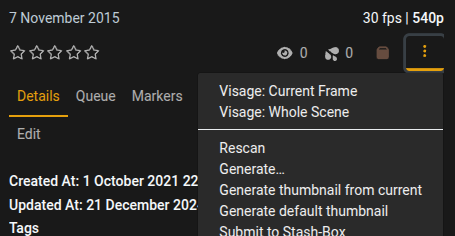
- Select a face in the current scene frame or image (or let Visage scan the whole frame) using the options in the Operations, Hamburger Menu (Next to the organize button).
- Visage sends that frame to a recognition backend.
- The backend compares the face against a performer database and returns ranked candidates with a confidence score.
- You pick the right performer, and one click adds them to the scene or image.
Getting started
On first run, Visage asks where to run recognition:
Hugging Face cloud: zero setup. (Face images are sent to the cloud service.)
Your own server: run the private backend on your network if you’d rather images never leave it.
Switch backends anytime via the settings gear in the results window.
How to use the plugin
- Open a scene in Stash.
- Click Visage: Current Frame in the scene toolbar.
- Drag a box around the face you want to identify, or press Enter to scan the whole frame at once.
- Visage opens a results window with the matching performers, ranked by confidence.
- Click a card to confirm your pick (click again to unconfirm), or hit Auto-select to pick every match at 90%+ confidence.
- Click Done — the confirmed performers are added to the scene.
Tips:
-
Sort matches by Confidence, Name, or Hits to find the right person faster.
-
Use the arrow keys + Enter to navigate and confirm without a mouse.
-
On image pages, Visage is available from the Image Operations menu.
-
Catching everyone in a video in one pass? Use Identify performers from sprite instead, it scans the whole video’s frame index at once.
-
Importing a performer needs a stash-box provider (named “StashDB”) set up in Settings → Metadata Providers. Visage will warn you if one isn’t configured.
That’s it, face found, performer tagged, done.