 |
Summary | Bulk-scrape images in Stash from a floating panel: review and edit each result, then apply it - without reloading the page. |
 |
Repository | stash-plugins/imageTagger at master · jojo-topo/stash-plugins · GitHub |
 |
Source URL | https://raw.githubusercontent.com/jojo-topo/stash-plugins/master/index.yml |
 |
Install | How to install a plugin? |
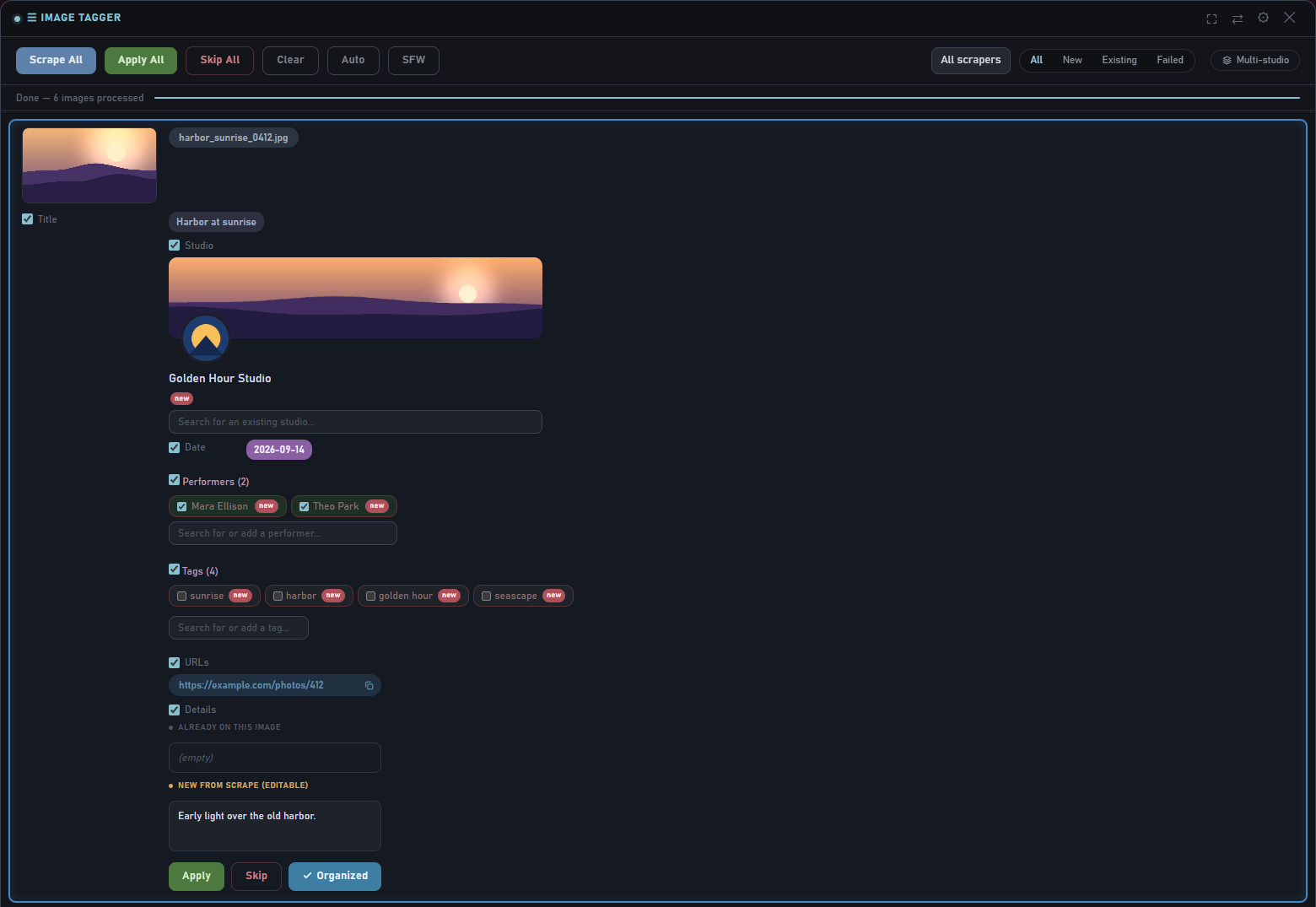
Image Tagger is the image counterpart of my Scene Tagger. I built it alongside Scene Tagger: for scenes there were already a few mass-scrape tools (not as polished as I wanted), but for images I couldn’t find much that worked directly and was ergonomic enough to use on a large backlog - scrape a whole page of images, see what each scraper found, fix what’s wrong, apply, next. That’s why it exists.
It shares Scene Tagger’s design (same panel, same review workflow, same look), adapted to images: scrapers go through Stash’s scrapeSingleImage, and the single-image panel can show the current image next to the scraped one. JavaScript only - no backend, no dependencies. It works on the /images list, on a studio’s Images tab, and on a single image’s page.
Features
-
Bulk scraping with automatic fallback Set up a chain of image scrapers in priority order (drag to reorder). If the first one finds nothing, the next one is tried automatically, and a small hint shows which scraper actually matched. Optionally the image’s already-saved URL is tried first.
-
Review before applying - nothing is written silently Each result is an inline, editable card (title, date, details, URLs, performers, studio, tags) with a checkbox per field. Uncheck what you don’t want, fix the studio/performers/tags, then Apply (or Apply All). Skip leaves an image untouched.
-
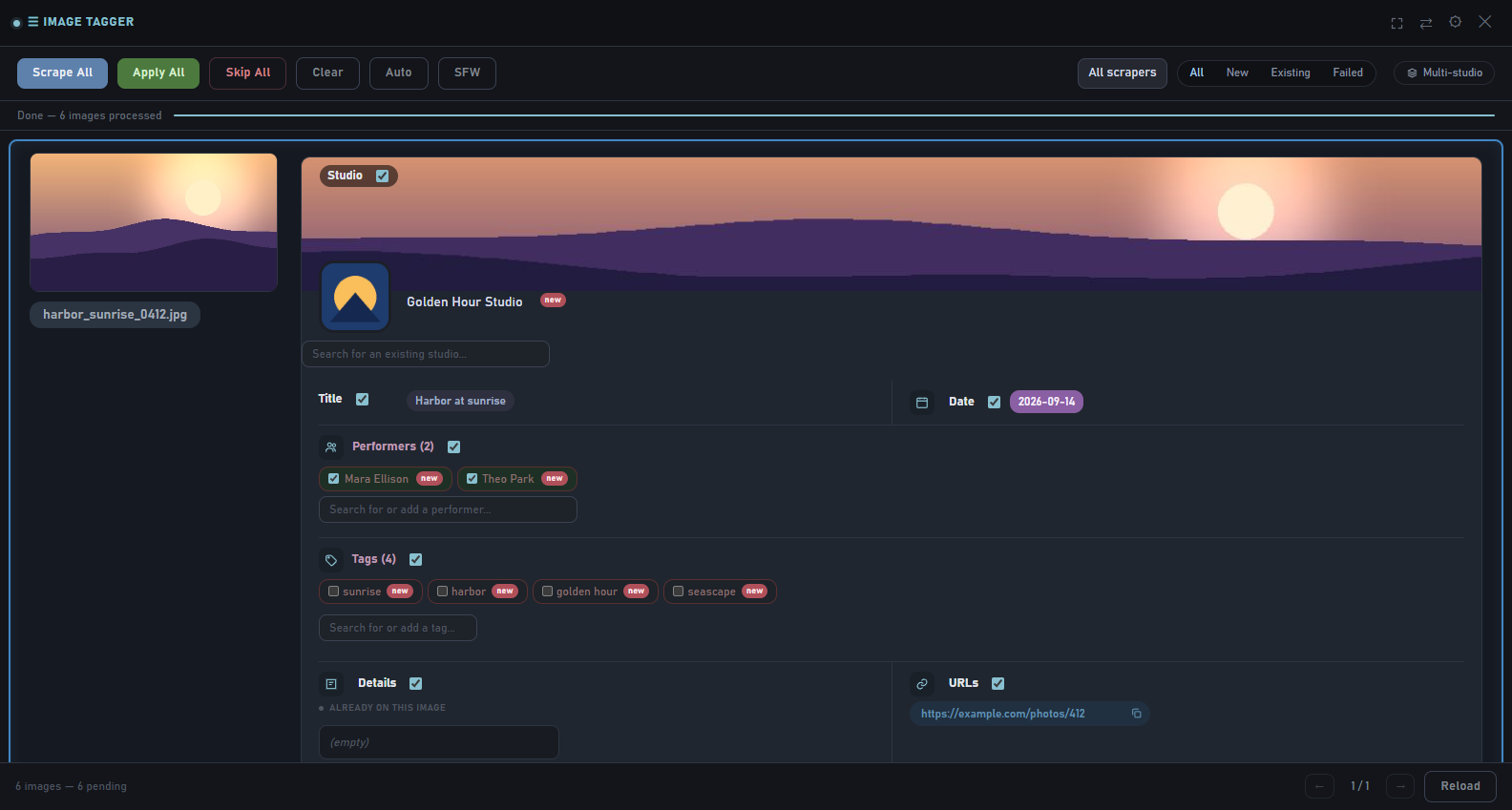
Studio cards with logo and banner The studio shows as a card with its logo and, if it has one, a banner (read from a
bg:<url>line in the studio’s Details, the replaceBackground format). Works for the scraped studio, the one already on the image, or one you pick through the search box. A studio that exists but misses its logo/banner is completed from the scrape - nothing is ever overwritten. -
Search and create on the fly Performers, studios and tags have a live search box in the panel; type to find an existing entry or create a new one. New entries get a new badge (aliases are checked, so an alternate spelling doesn’t create a duplicate). Optionally new entries are checked by default for a big first import.
-
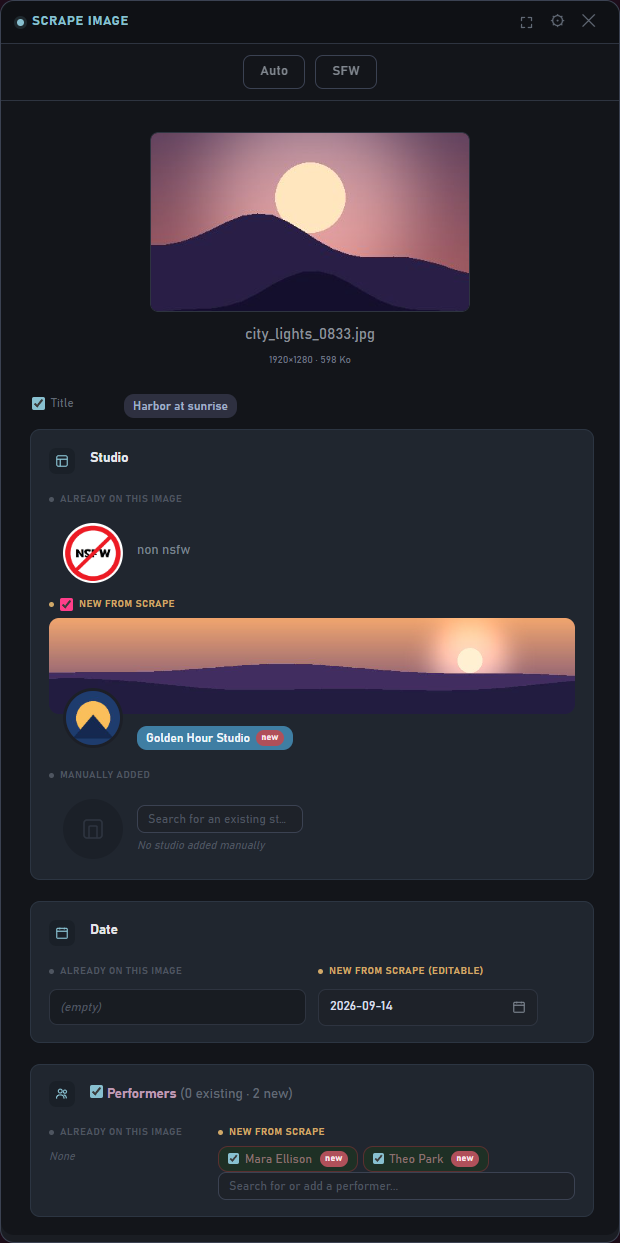
One image at a time An IT badge in the image page’s toolbar opens the same panel for that single image, with “already on this image” next to “new from scrape” for each field, and an optional side-by-side view of the current and the scraped image.
-
Filters after a bulk scrape All / New / Existing / Failed, a filter by which scraper matched, and a Multi-studio button that cycles through three states (off, only images with several studio candidates, everything except those). Applied and skipped images only show under the filters they belong to.
-
Live feedback A translucent progress veil with a status line while a row is being scraped (which scraper is tried, etc.), blue tints for scraped/applied rows, a red outline for failures, and a short blue flash when you apply. Each one has its own toggle.
-
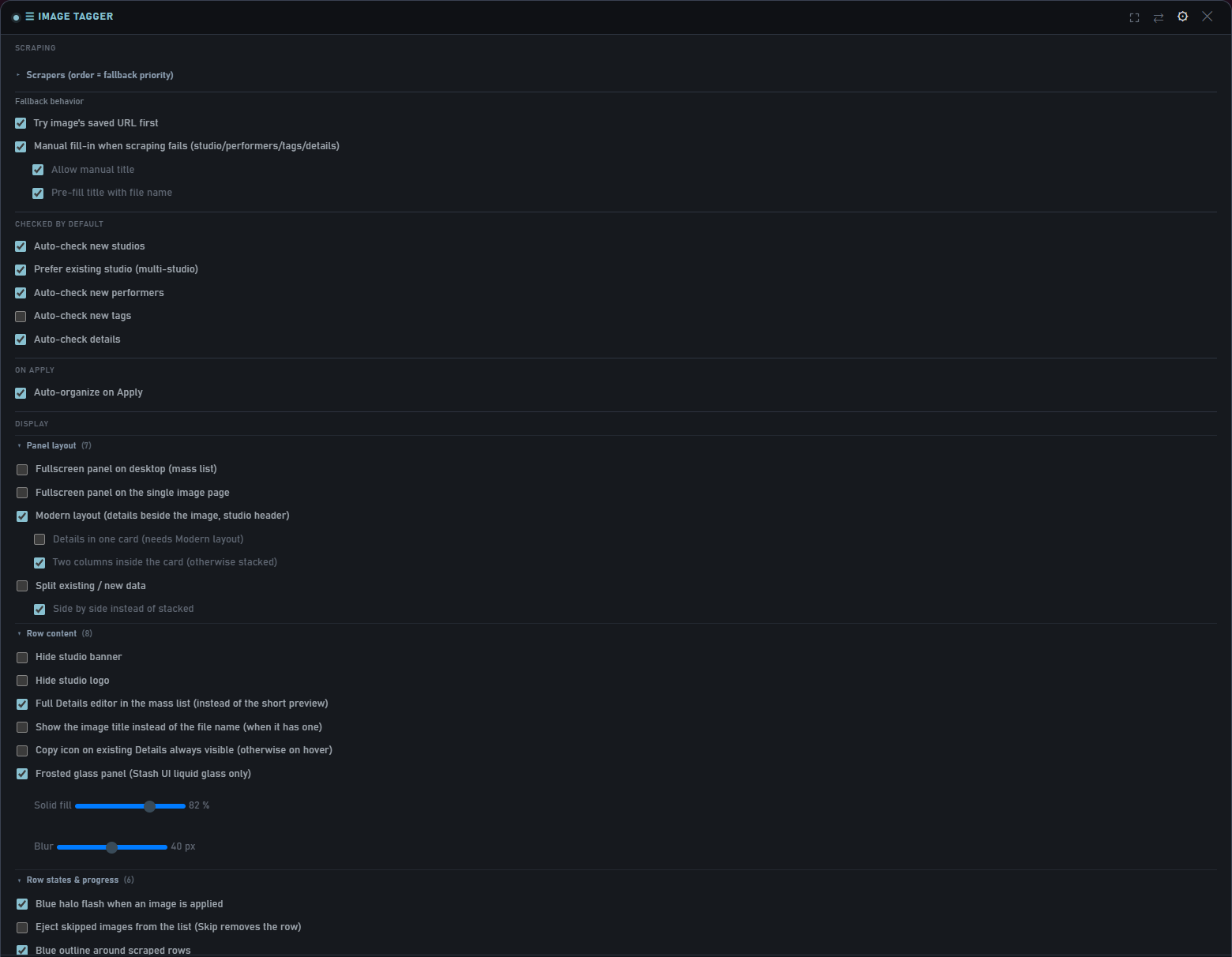
Layouts Modern layout (details beside the image, studio as a banner header) with an optional Details in one card, fullscreen on desktop, a compact floating mode, and a phone/tablet layout with a folding header. Most layout options are off by default (Settings → Display).
-
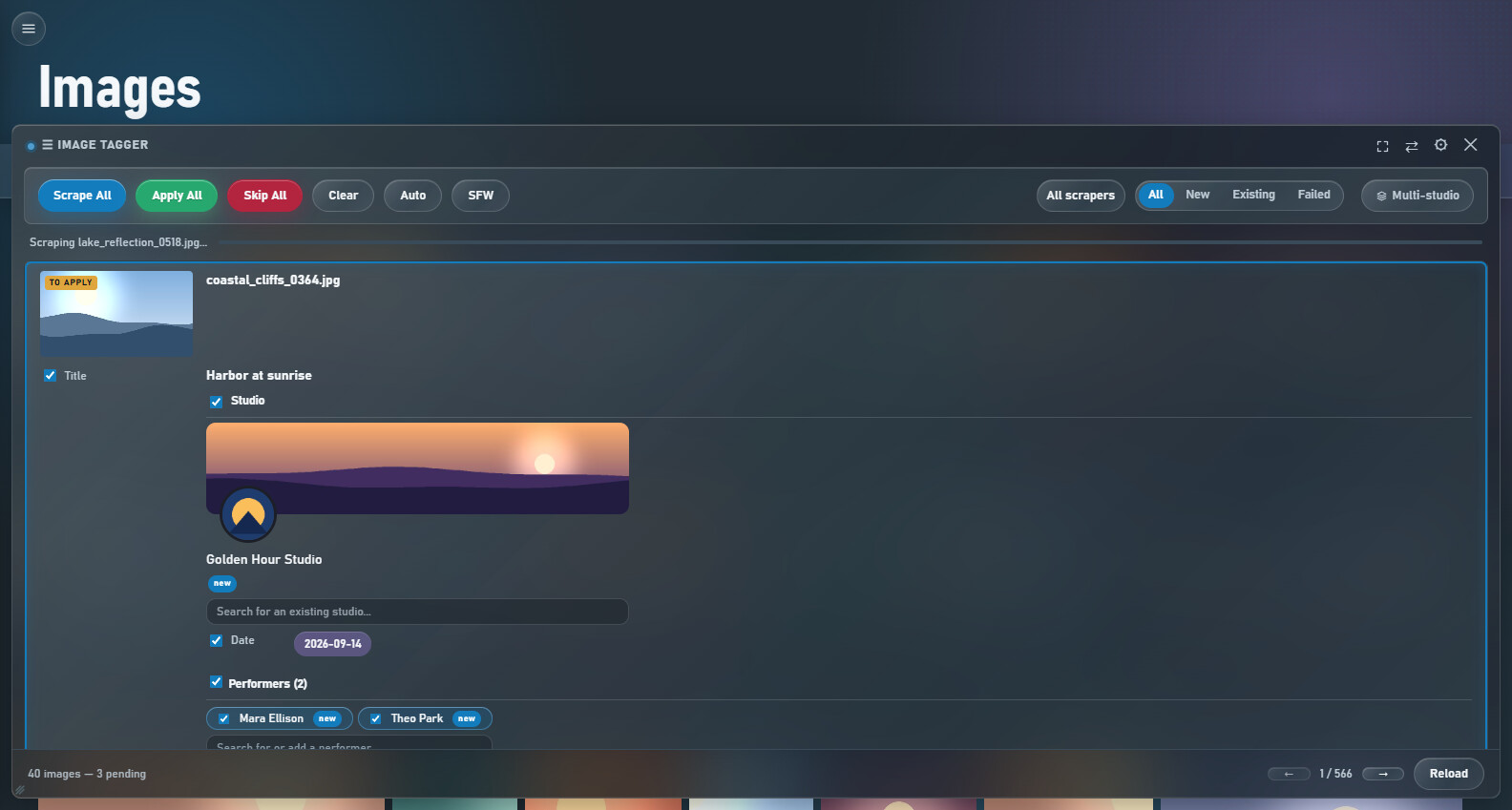
Works in Stash UI too If you use the Stash UI app, an Image Tagger button on the images list opens the same panel (it follows the list’s filter, sort and page), and the image viewer gets a solo IT button. The panel follows Stash UI’s look, with an optional frosted-glass style. This relies on a small assets/stashui.js shipped inside the package.
- And also Manual fill-in when a scrape fails (optional manual title, pre-filled with the file name), a studio blacklist for VA/compilation names, Auto-organize on Apply, a full Details editor in the list, an SFW button that blurs the previews, and a settings panel you can resize.
It works best with my rule34-python scraper if you use rule34.xxx. Like Scene Tagger, Image Tagger started around that workflow: the scraper returns the real publication date, the artists as studio candidates (a line Artists: name1[id1] | name2 in the details lets you pick the right studio among several candidates) and the scraped image for the side-by-side view. It works with any scraper that supports images, but with rule34-python you get all of that out of the box.
Installation
-
In Stash: Settings → Plugins → Add Source, with the URL
https://raw.githubusercontent.com/jojo-topo/stash-plugins/master/index.yml. -
Install Image Tagger from the list (you need at least one image scraper in Settings → Metadata Providers → Scrapers).
-
Go to
/images: an Image Tagger button appears in the toolbar (also on a studio’s Images tab). On an image’s own page, a small IT badge appears.
