Thanks for the plugin!
A couple of suggestions:
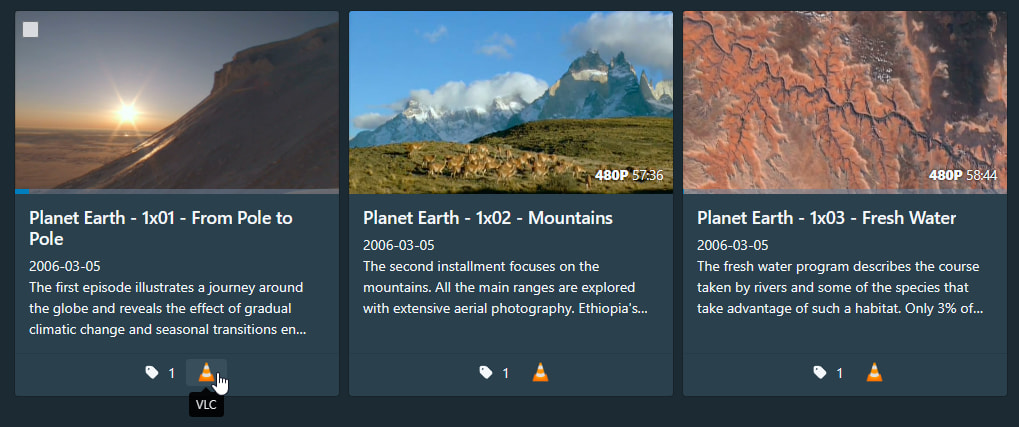
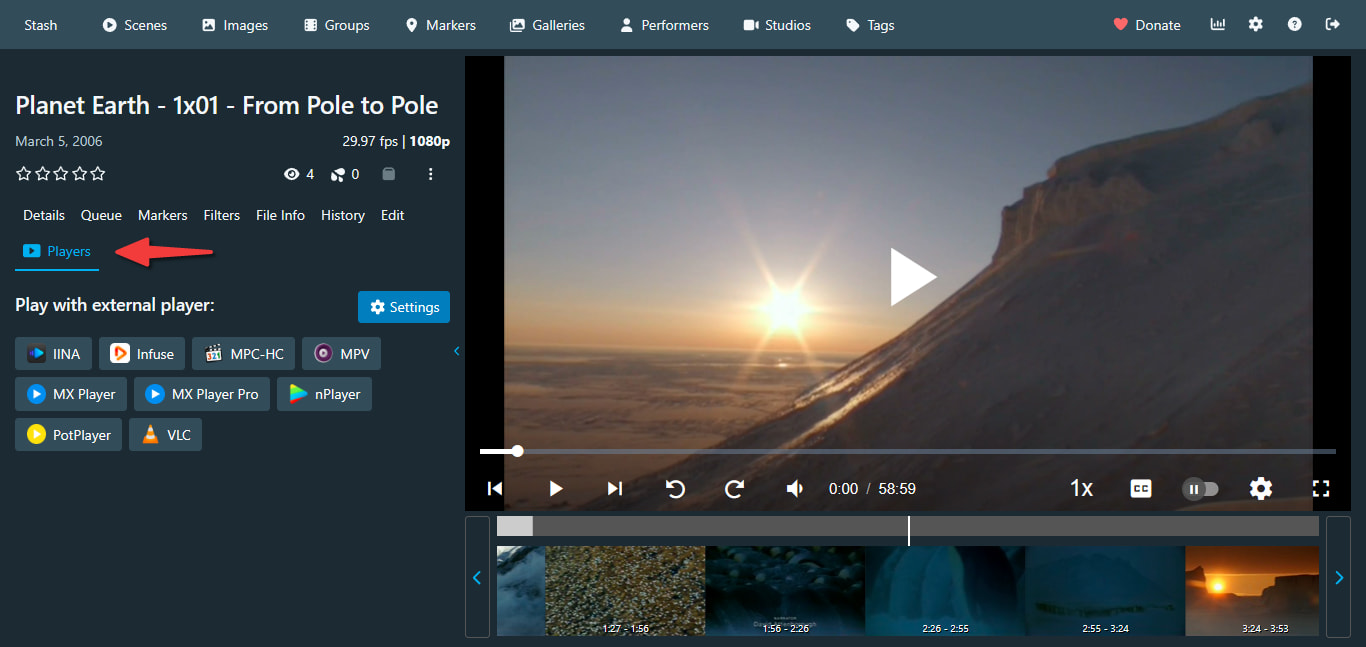
- Can the scene page also have “launch button”, instead of a “tab” with the player configuration, etc? This would save a click, and settings for the plugin are also available in the stash’s settings page. If needed, this could be optional. E.g. something like this
diff -urpN external-player-launcher.bak/assets/locales/en-US.json external-player-launcher/assets/locales/en-US.json
--- external-player-launcher.bak/assets/locales/en-US.json	2026-07-22 23:31:31.223459500 -0700
+++ external-player-launcher/assets/locales/en-US.json	2026-07-23 23:54:32.174399300 -0700
@@ -3,6 +3,8 @@
   "settings.modal.title": "External Player Settings",
   "settings.noteBold": "Note: ",
   "settings.noteText": "All settings only affect this client",
+  "settings.enableSceneTab": "Enable Players tab in a scene",
+  "settings.enableSceneTabHint": "When enabled, scene page shows a tab with settings and enabled players. When disabled, only shows the playback button (similar to grid view).",
   "settings.singlePlayerMode": "Single player mode",
   "settings.singlePlayerModeHint": "When turned on, the player selector at the bottom of scene cards will be replaced with the player button selected below.",
   "settings.playerSelection": "Player selection",
diff -urpN external-player-launcher.bak/main.js external-player-launcher/main.js
--- external-player-launcher.bak/main.js	2026-07-22 23:31:31.225459500 -0700
+++ external-player-launcher/main.js	2026-07-25 23:17:59.023308000 -0700
@@ -90,13 +90,15 @@
   const defaultSettings = {
     excludedPlayerIds: [],
     singlePlayerId: playerButtons[0].id,
-    singlePlayerMode: false
+    singlePlayerMode: false,
+    enableSceneTab: false
   };
   function cloneSettings(settings) {
     return {
       excludedPlayerIds: [...settings.excludedPlayerIds],
       singlePlayerId: settings.singlePlayerId,
-      singlePlayerMode: settings.singlePlayerMode
+      singlePlayerMode: settings.singlePlayerMode,
+      enableSceneTab: settings.enableSceneTab
     };
   }
   function normalizeSettings(parsed) {
@@ -106,7 +108,8 @@
     return {
       excludedPlayerIds,
       singlePlayerId,
-      singlePlayerMode: Boolean(parsed?.singlePlayerMode)
+      singlePlayerMode: Boolean(parsed?.singlePlayerMode),
+      enableSceneTab: Boolean(parsed?.enableSceneTab)
     };
   }
   function readSettings() {
@@ -402,7 +405,21 @@
         contentClassName: "external-player-settings-modal-content"
       },
       /* @__PURE__ */ React.createElement(Modal.Header, { closeButton: true }, /* @__PURE__ */ React.createElement(Modal.Title, null, /* @__PURE__ */ React.createElement(FormattedMessage, { id: "settings.modal.title" }))),
-      /* @__PURE__ */ React.createElement(Modal.Body, null, /* @__PURE__ */ React.createElement("div", { className: "note-block" }, "\u26A0\uFE0F", /* @__PURE__ */ React.createElement("strong", null, /* @__PURE__ */ React.createElement(FormattedMessage, { id: "settings.noteBold" })), /* @__PURE__ */ React.createElement(FormattedMessage, { id: "settings.noteText" })), /* @__PURE__ */ React.createElement("div", { className: "external-player-settings-section" }, /* @__PURE__ */ React.createElement(
+      /* @__PURE__ */ React.createElement(Modal.Body, null, /* @__PURE__ */ React.createElement("div", { className: "note-block" }, "\u26A0\uFE0F", /* @__PURE__ */ React.createElement("strong", null, /* @__PURE__ */ React.createElement(FormattedMessage, { id: "settings.noteBold" })), /* @__PURE__ */ React.createElement(FormattedMessage, { id: "settings.noteText" })),
+      /* @__PURE__ */ React.createElement("div", { className: "external-player-settings-section" },/* @__PURE__ */ React.createElement(
+        Form.Check,
+        {
+          type: "switch",
+          id: "external-player-scene-tab",
+          label: intl.formatMessage({ id: "settings.enableSceneTab" }),
+          checked: draftSettings.enableSceneTab,
+          onChange: (event) => setDraftSettings((current) => ({
+            ...current,
+            enableSceneTab: event.target.checked
+          }))
+        }
+      ), /* @__PURE__ */ React.createElement("div", { className: "external-player-settings-hint" }, /* @__PURE__ */ React.createElement(FormattedMessage, { id: "settings.enableSceneTabHint" }))),
+      /* @__PURE__ */ React.createElement("div", { className: "external-player-settings-section" },/* @__PURE__ */ React.createElement(
         Form.Check,
         {
           type: "switch",
@@ -466,7 +483,7 @@
       )
     ));
   }
-  function SceneCardExternalPlayerControls({ sceneProps }) {
+  function ExternalPlayerPlaybackControls({ sceneProps }) {
     const { settings } = useSettingsState();
     const [isOpen, setIsOpen] = React.useState(false);
     if (settings.singlePlayerMode) {
@@ -548,18 +565,29 @@
   PluginApi.patch.after(
     "ScenePage.Tabs",
     function(props, _, original) {
-      original.props.children.push(
-        /* @__PURE__ */ React.createElement(ExternalPlayerTabLabel, null)
-      );
+      const { settings } = useSettingsState();
+      if (settings.enableSceneTab) {
+        original.props.children.push(
+          /* @__PURE__ */ React.createElement(ExternalPlayerTabLabel, null)
+        );
+      }
+      else {
+        original.props.children.push(
+          /* @__PURE__ */ React.createElement(ExternalPlayerPlaybackControls, { key: "external-player-controls", sceneProps: props })
+        );
+      }
       return original;
     }
   );
   PluginApi.patch.after(
     "ScenePage.TabContent",
     function(props, _, original) {
-      original.props.children.push(
-        /* @__PURE__ */ React.createElement(ExternalPlayerTabHeader, { sceneProps: props })
-      );
+      const { settings } = useSettingsState();
+      if (settings.enableSceneTab) {
+        original.props.children.push(
+          /* @__PURE__ */ React.createElement(ExternalPlayerTabHeader, { sceneProps: props })
+        );
+      }
       return original;
     }
   );
@@ -573,7 +601,7 @@
         original,
         (node) => node?.type instanceof Object && node.type?.displayName === "ButtonGroup",
         "appendChild",
-        /* @__PURE__ */ React.createElement(SceneCardExternalPlayerControls, { key: "external-player-controls", sceneProps: props })
+        /* @__PURE__ */ React.createElement(ExternalPlayerPlaybackControls, { key: "external-player-controls", sceneProps: props })
       );
       return original;
     }
-
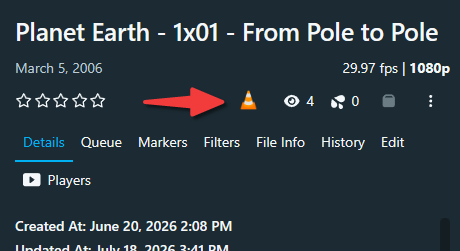
With the above change, I also tried to relocate the player launch button to view/O counters (which is where the “external player” button is located in the mobile UI), i.e. like this:
But my React-fu is not strong enough  It apparently can be done (example) but seems to require looking up specific classes for elements, which would be fragile. I tried to play with
 injectIntoReactTree predicates to achieve this but did not succeed.
PS. I just updated to 1.1.0 and noticed there is an option to hide the tab from the scene details page. The patch above does not hide it but replaces it with a single-click launcher used by the scene card.


 Source Code: https://github.com/esumaka/external-player-launcher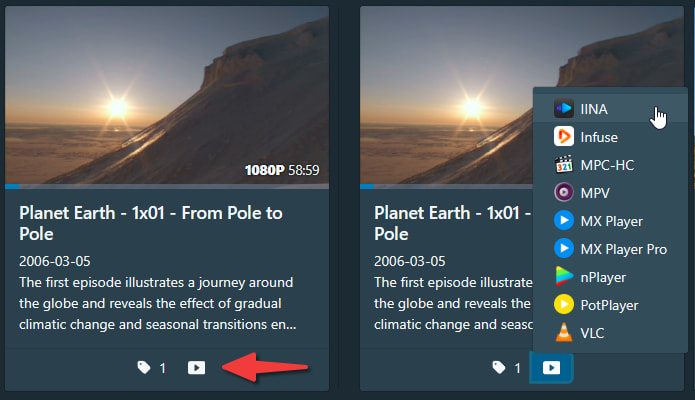
 Note: Some players require additional tools to function properly.

